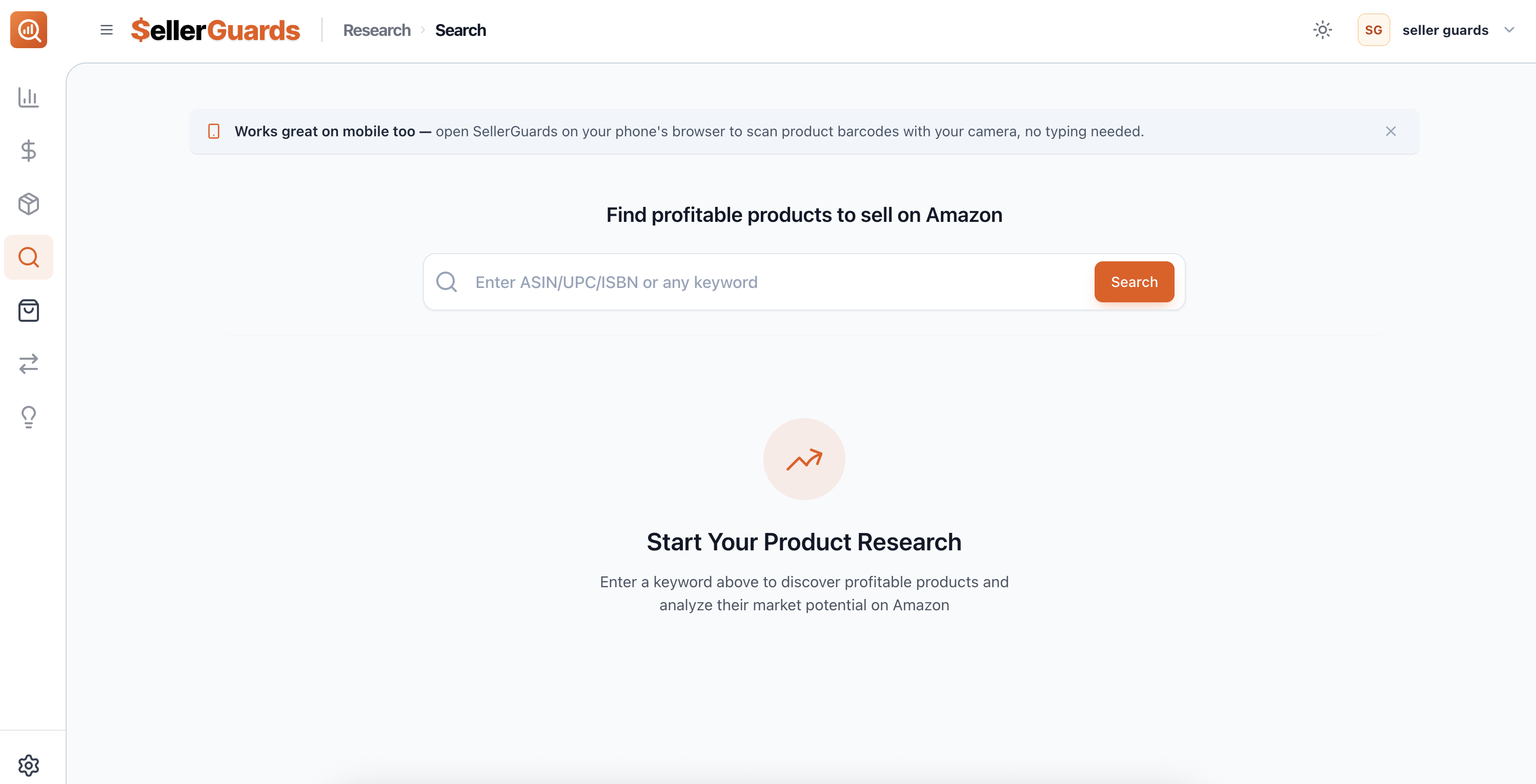
Research & Sourcing lets you search any Amazon keyword or ASIN and get live data — profit potential, Buy Box ownership, FBA fees, and competitive offers — before you spend a dollar. Use it on desktop to analyze products at your desk, or on your phone to scan barcodes while you're out sourcing.
Research & Sourcing is made up of six tools that work together across the product discovery workflow:
1 Keyword & ASIN Search
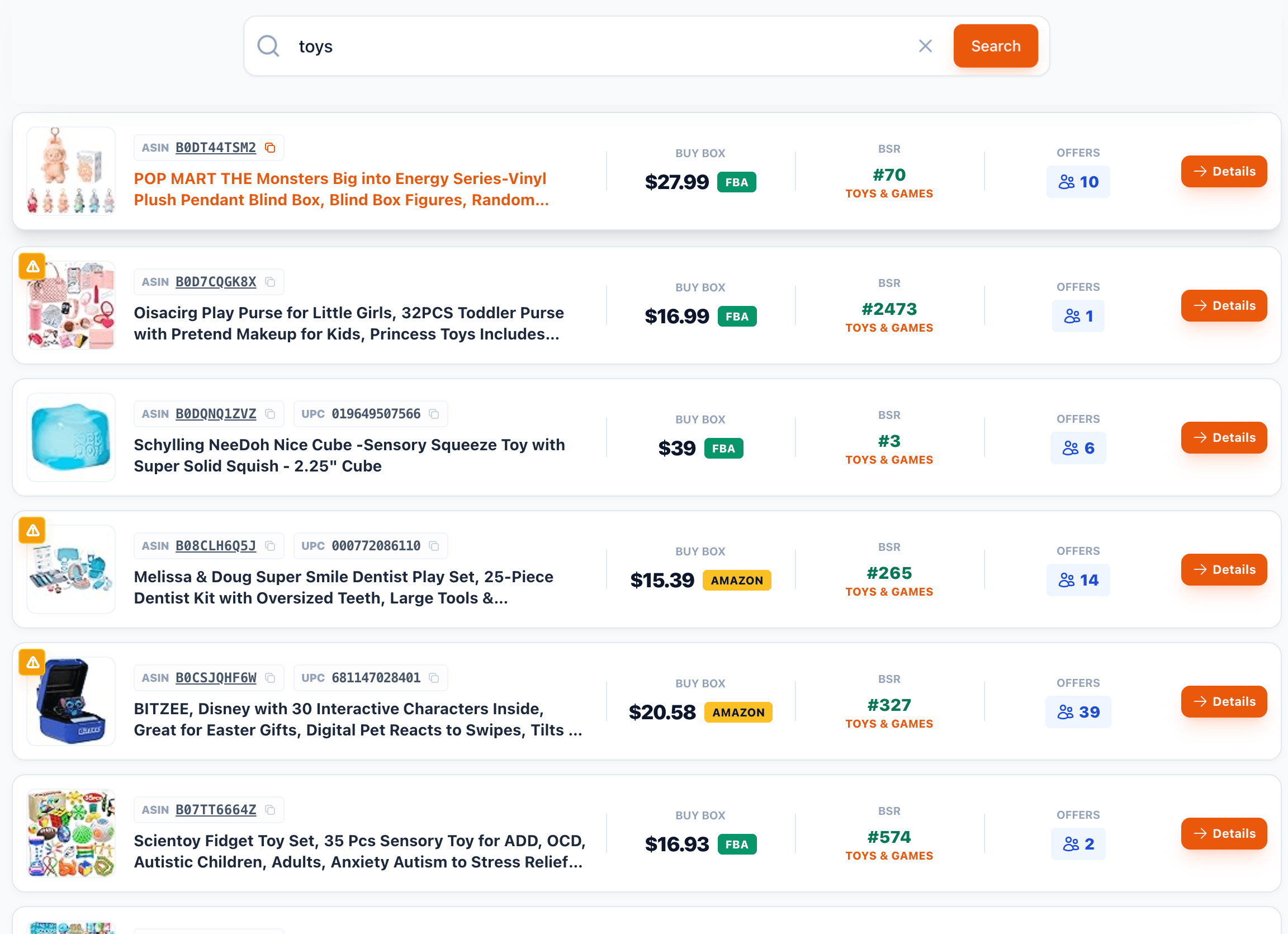
Search by keyword or paste an ASIN to get a live list of matching Amazon products — title, image, ASIN, UPC, BSR, and category rank all in one view.
2 Barcode Scanner
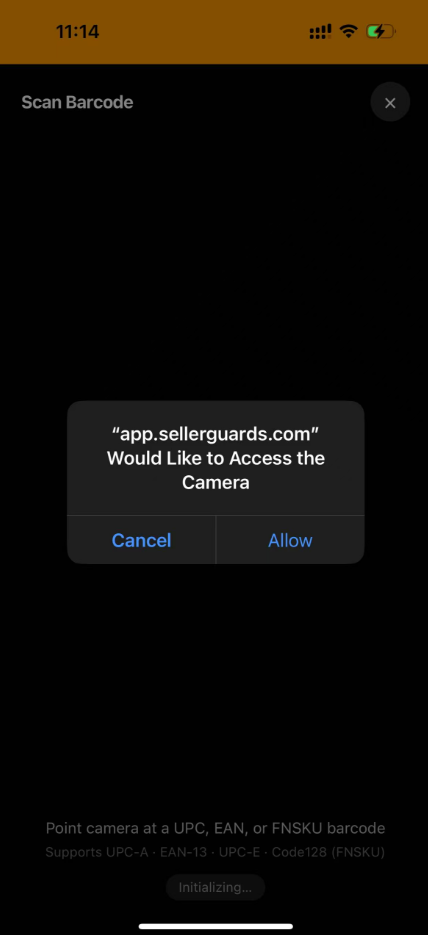
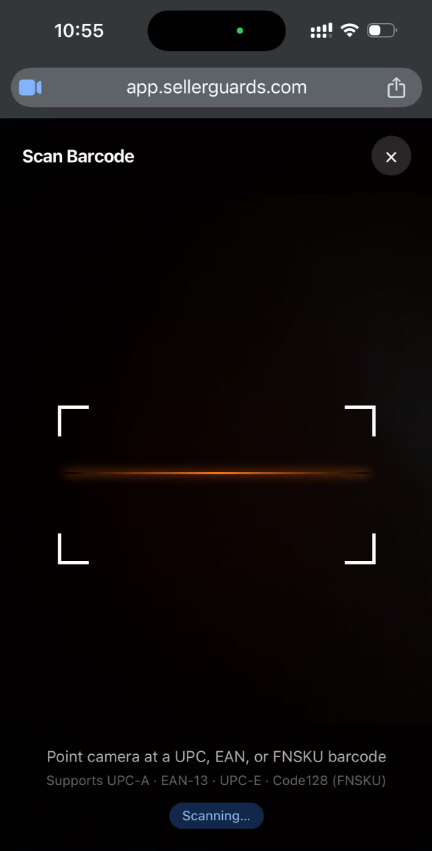
Scan any product barcode with your phone camera — no app required. Instantly pulls up the Amazon listing and profit data for the item in front of you.
3 Buy Box Analysis
See who owns the Buy Box (Amazon or a third-party seller) and at what price, so you know what you're competing against before you list.
4 Profit Calculator
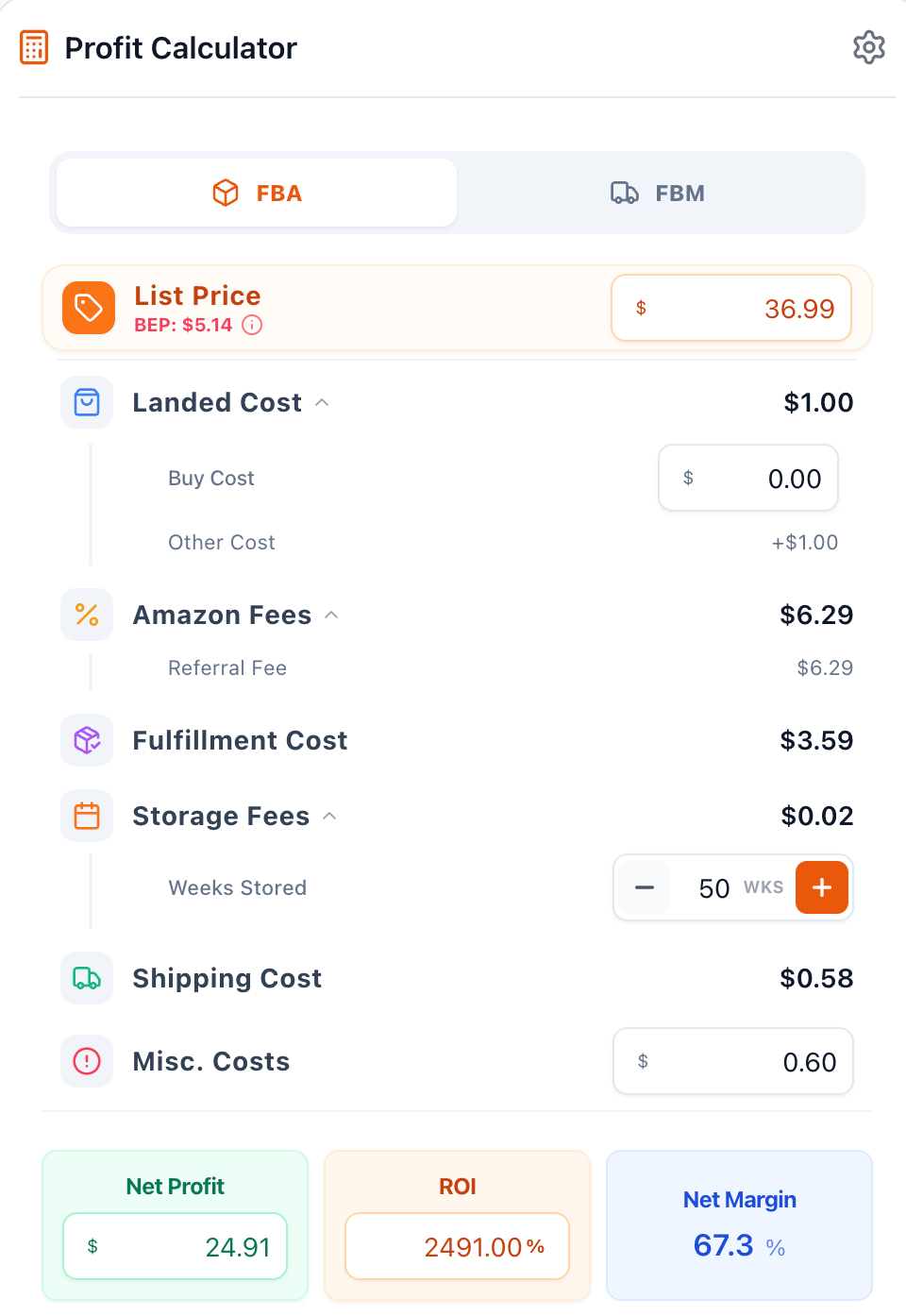
Enter your buy cost to see net profit, margin, and ROI after Amazon referral fee, FBA fulfillment fee, and storage fees. Adjust sell price or prep cost to model scenarios.
5 Competitive Offers
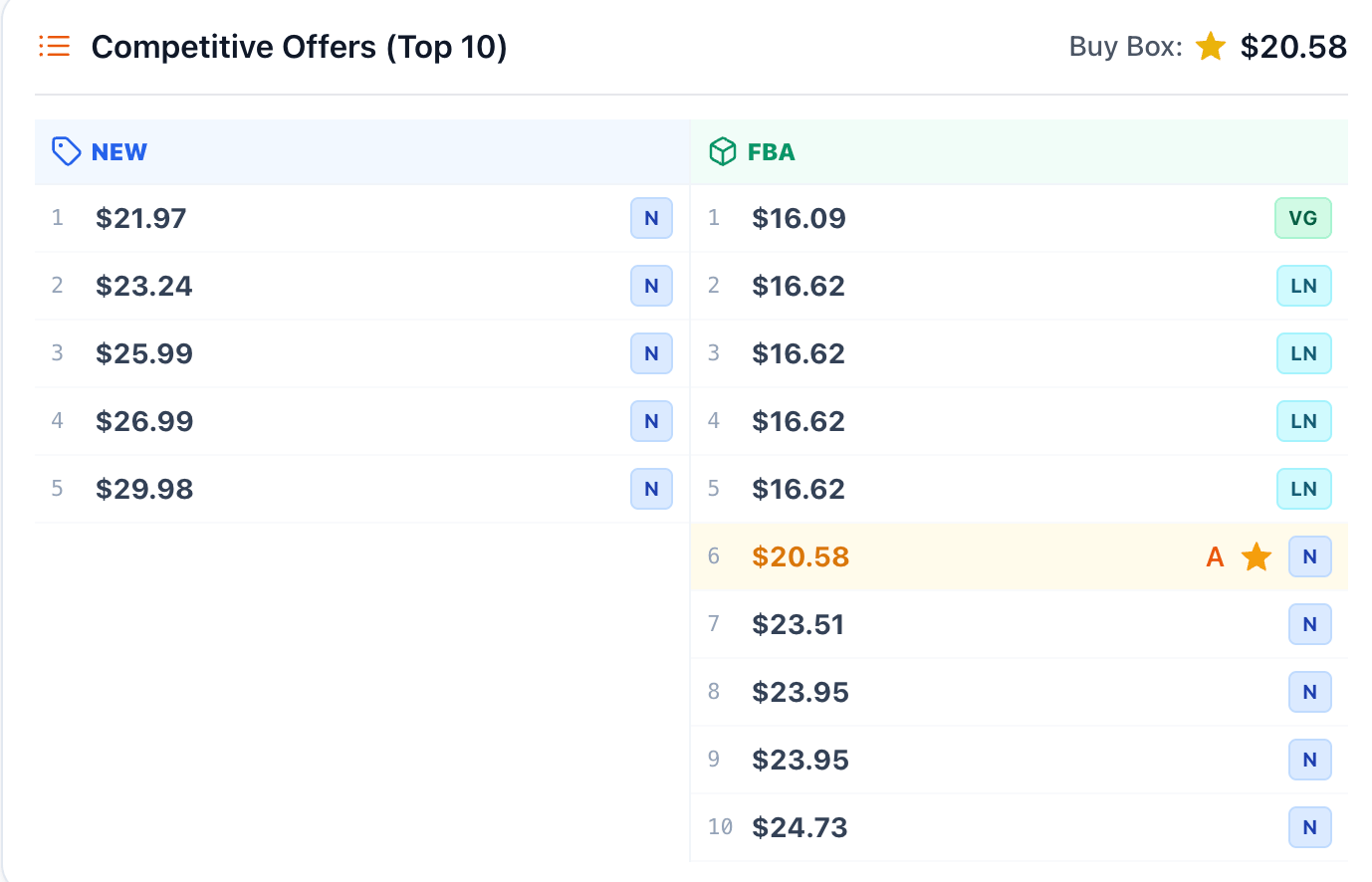
See every active offer on a listing side by side — price, condition, and FBA vs FBM — so you can size up the competition quickly.
6 Purchase Lists & Search History
Save promising products to sourcing lists with supplier, quantity, buy cost, and expiry date. Your search history is always available to revisit products you've looked at before.
The Research Page
When you open Research & Sourcing, you'll see a search bar at the top. Type a keyword or paste an ASIN and press Enter. Results appear in a scrollable list below — each row shows key data at a glance.
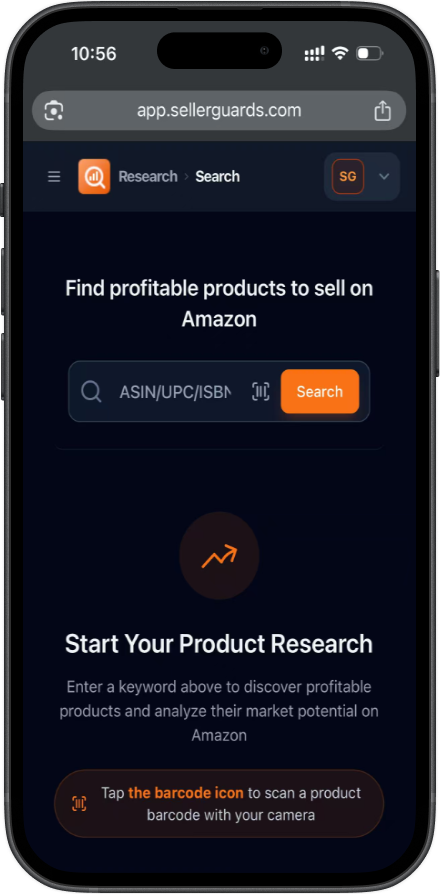
On Mobile — Keyword Search & Barcode Scan
The mobile version works exactly the same way — open it in your mobile browser or from your home screen shortcut. On mobile, a barcode icon appears beside the search button. Tap it to activate the camera scanner for in-store sourcing.
After you search, results appear as a list of products. Each row shows key data at a glance so you can quickly identify which products are worth investigating further.
Fields Explained
Product Image
The main Amazon listing photo. A quick visual confirmation you're looking at the right item — especially useful when scanning barcodes in-store.
ASIN
Amazon's unique product identifier (e.g., B08N5WRWNW). Use it to search for an exact product, or to reference the listing when ordering from a supplier.
UPC
The product's Universal Product Code — the barcode number. This is what SellerGuards reads when you scan a barcode in-store to find the matching Amazon listing.
Product Name
The full Amazon listing title. Confirm the product, size, and variation match what you're holding before pulling up profit details.
Buy Box
The current Buy Box price — what a customer sees when they click "Add to Cart." If Amazon holds the Buy Box, third-party sellers face more competition. This price is used as the default in the profit calculator.
BSR (Best Seller Rank)
Amazon's category ranking for the product. Lower = sells faster. Rank #1 is the best seller in its category. A BSR under 100,000 in a major category typically indicates solid sales velocity.
Offers Count
The total number of sellers currently listing this product. A high count means more Buy Box competition; a low count may signal less pricing pressure.
Channel
Whether the item ships via FBA (Fulfilled by Amazon) or FBM (Fulfilled by Merchant). FBA items are Prime-eligible and typically win the Buy Box more easily.
Category
The Amazon product category (e.g., Toys & Games, Health & Household). Categories have different referral fee rates, BSR scales, and gating rules — knowing the category helps you assess whether you can sell in it.
Tip: Searching by ASIN is more precise than keywords — paste the ASIN for an exact match rather than browsing keyword results.
Product Detail Page
Tap any product in the results to open its detail page. This is where you do the real analysis — check every offer, run your profit numbers, and decide if this product is worth buying.
Product Information
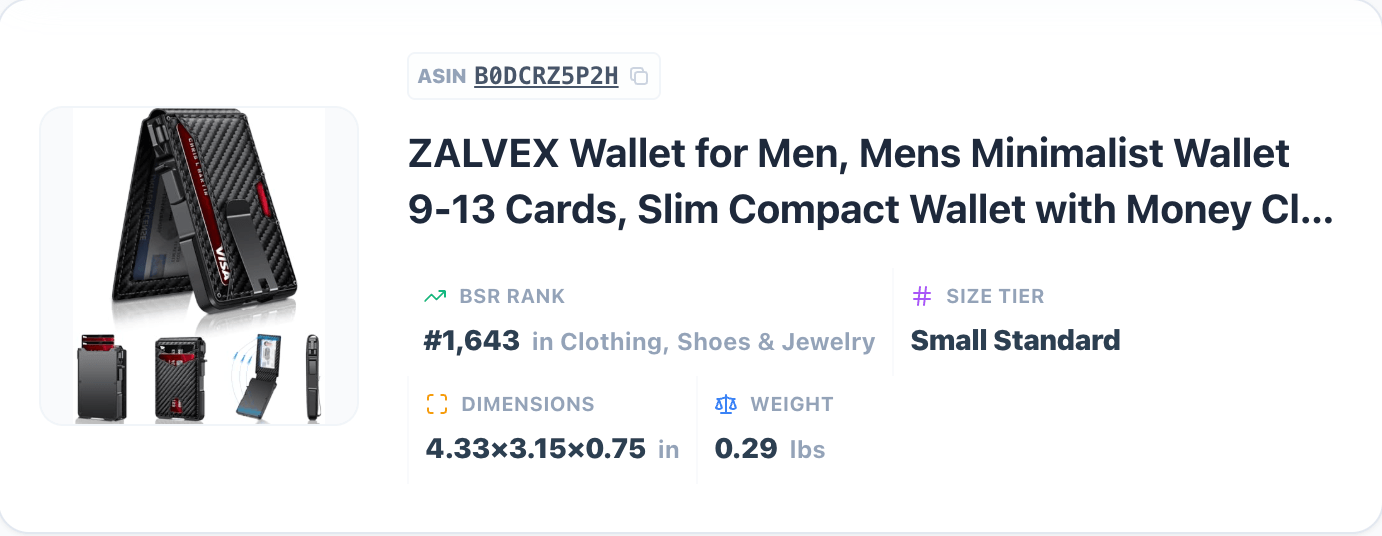
The top section shows core product data: title, brand, ASIN, UPC, size tier, weight, category, and BSR. This is the same data Amazon uses to compute fees.
Competitive Offers
See every active seller on the listing — their price, condition (New or Used), and whether they ship via FBA or FBM. The current Buy Box winner is highlighted. Use this to gauge the competition and decide if you can price in range.
Profit Calculator
The profit calculator shows your estimated net profit, margin, and ROI for any product based on current Amazon fees. It updates in real time as you adjust your numbers.
Inputs
Buy Cost
What you pay per unit from your supplier. This is the most important input — the calculator uses it as your cost basis.
Sell Price
Defaults to the current Amazon Buy Box price. You can adjust it to model different pricing strategies.
Prep Cost (optional)
Any per-unit prep or shipping cost you incur before sending to Amazon. Add this if you use a prep center or ship to FBA yourself.
What the calculator shows
Amazon Referral Fee
The percentage Amazon charges per sale, pulled live based on the product's category.
FBA Fulfillment Fee
Amazon's per-unit pick, pack, and ship fee based on the item's size tier and weight.
Net Profit
Sell price minus buy cost, all fees, and prep cost. This is your take-home amount per unit sold.
Margin & ROI
Margin is net profit as a percentage of sell price. ROI is net profit as a percentage of your total cost (buy cost + prep).
Note: Monthly storage fees are not included in the real-time calculation as they depend on how long your inventory sits at Amazon. Factor in storage cost separately if you're buying slow-moving products.
Purchase Lists
Save products you're interested in to named purchase lists, so you can organize your sourcing and come back to review later before placing orders.
1
Open a product and tap "Save to List"
From any product detail view, tap the bookmark icon or "Save to Purchase List" button.
2
Fill in the sourcing details
Enter the supplier name, quantity you plan to order, buy cost, and optionally an expiry date (for perishables or time-sensitive deals). These details are saved alongside the product.
3
Select or create a list
Choose an existing list (e.g., "Wholesale Run — March") or create a new one. You can have multiple lists running at the same time.
4
Review your lists from the Purchase Lists tab
All your lists are accessible from the Research sidebar. Each item shows the profit snapshot you captured at save time.
Search History
Every product you've searched or scanned is saved to your search history automatically. You can revisit any past lookup without re-searching — useful for tracking whether margins or Buy Box ownership have changed since you last looked.
Tip: If you want to check whether a product's Buy Box price has dropped or competition has increased since your last visit, open it from history — the data refreshes live when you view it.
Ready to start sourcing smarter?
Research & Sourcing is free during beta — no credit card required.