SellerGuards is an all-in-one platform for Amazon sellers — covering product research, inventory tracking, profit & loss, financial insights, and transaction management. This guide walks you through setting up your account and connecting your Amazon store so you can start making better-informed decisions from day one.
Beta Program: SellerGuards is currently in beta. Research & Sourcing is fully available now — and free for all beta users. Additional features (P&L, Insights, Inventory, Transactions) are being rolled out progressively. You'll get access as each one launches.
Create Your Account
Getting started takes less than two minutes. No credit card required during the beta. You can sign up with your email or continue with Google.
Email & password — enter your email and choose a password (minimum 8 characters). You'll receive a verification email — click the link to confirm your account.
Continue with Google — sign in with your Google account in one click. No password or email verification needed.
3
Sign in to your dashboard
Once your account is ready, sign in to reach your dashboard. You'll be prompted to connect your Amazon store.
SellerGuards connects to your Amazon Seller Central account using Amazon's Selling Partner API (SP-API). This is a secure, official integration — we never store your Amazon password.
1
Open Settings → Integrations
From your dashboard, click the Settings icon in the sidebar, then go to the Integrations tab.
2
Click "Connect Amazon"
You'll be redirected to Amazon's authorization page. Make sure you're signed in to the Seller Central account you want to connect.
3
Grant permissions
Amazon will list the data SellerGuards is requesting access to — orders, inventory, fees, and financial events. Click Confirm to authorize the connection.
4
Wait for initial sync
After authorization, SellerGuards begins pulling your historical data. This can take a few minutes for large accounts. You'll see a progress indicator on your dashboard.
Tip: Make sure you're connecting the account with Seller Central admin access. Sub-accounts with restricted permissions may not be able to authorize the full integration.
Navigate the Platform
Once your store is connected, you have access to all five feature areas. Here's a quick overview of what each one does — click any card to open its full documentation.
Track FBA and FBM stock, manage purchase lots with true FIFO COGS, and see per-SKU performance.
Coming Soon
Transactions & Finances
Every transaction in one place
Auto-synced Amazon orders, refunds, reimbursements, plus your own expenses and mileage tracking.
Coming Soon
Using SellerGuards on Mobile
SellerGuards is a web app — no separate download required. It works in any mobile browser, and you can add it to your home screen for a native app-like experience with one-tap access.
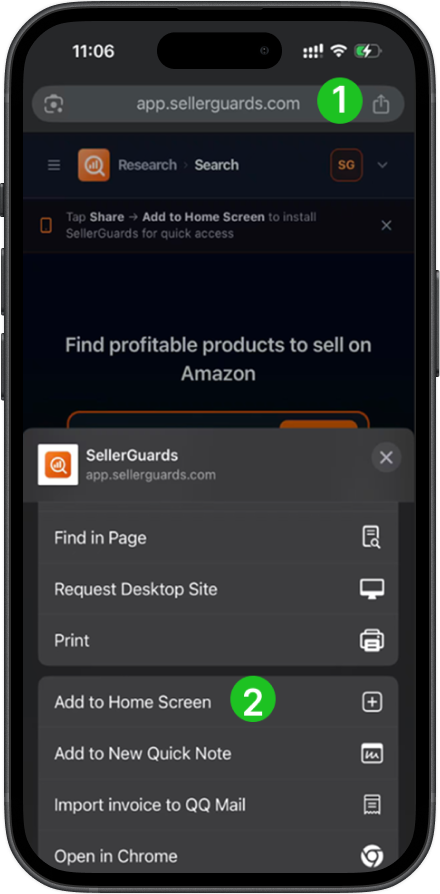
1Tap the Share icon
Open SellerGuards in your mobile browser. Tap the share icon — in Safari it's the arrow-up-on-square button in the middle of the bottom bar; in Chrome it's in the top address bar on the right.
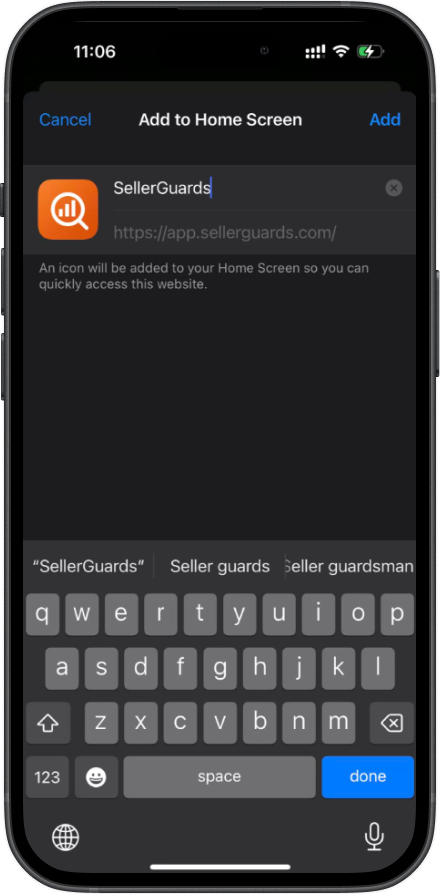
2Tap Add to Home Screen
From the action sheet that appears, tap Add to Home Screen. The name is pre-filled as SellerGuards — tap Add to confirm.
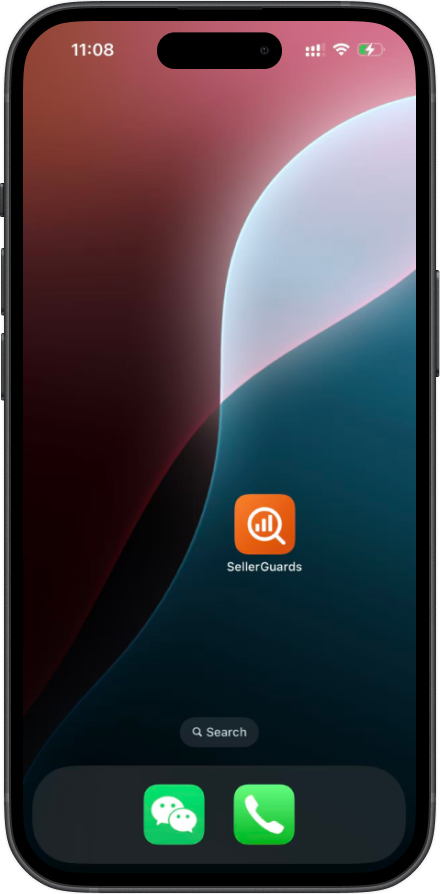
3App icon appears on your home screen
The SellerGuards icon is now on your home screen, just like any native app — ready for one-tap access.
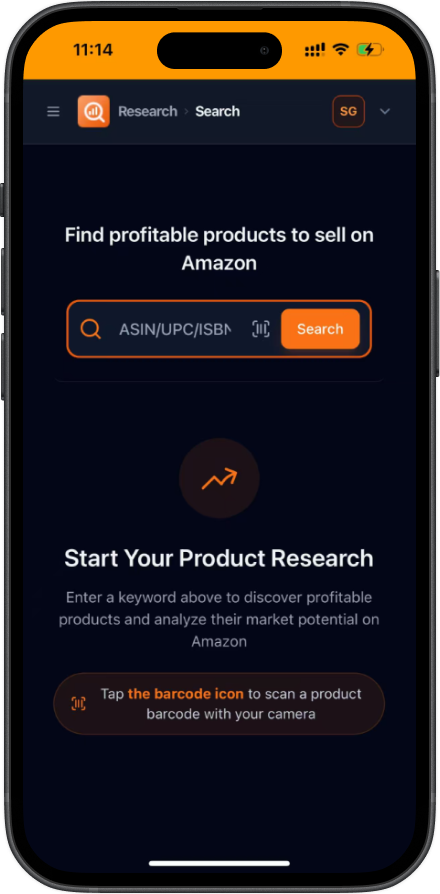
4Launches like a native app
Tap the icon and SellerGuards opens full-screen — no browser chrome, no address bar. The full experience, right from your home screen.
Barcode scanning: The Research & Sourcing barcode scanner uses your phone's camera directly — no app install needed. Just open SellerGuards from your home screen and tap the scan icon.
Your account is set up — now start sourcing
Search any keyword or scan a barcode to see live Amazon data, profit estimates, and competitive offers.